
Log in to IqOption.com account
- Visit website iqoption or mobile app,
- Click on “Log In” button,
- You need fill fields: “Phone number” or “E-mail” and “Password”,
- For social login click on “Facebook” or “Gmail” button,
- Click on “Log In” button.
How to sign in?
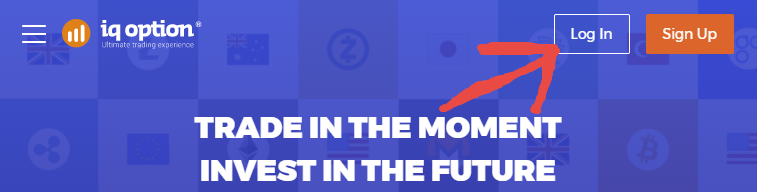
First of all trader has to visit the main page of IqOption and found menu `Log In` and click to the menu like on sample:
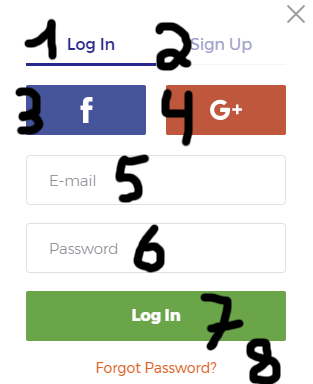
On the sample you can find few buttons and fields. Button number 1 allow to select fields to sign in to IqOption. Button number 2 allow trader to select fields to register new trading account. Button number 3 allow log in with Facebook account. Button number 4 allow trader to log in with Gmail account. Field number 5 must be filled with email (Email is login and if trader doesn’t remember login in this case trader has to contact to IqOption support and broker will help recover login by phone number, ip, passport, full name or by other private information). Field number 6 must be filled with password. Button number 7 must be used to log in to broker. Button number 8 must be used in case if trader forgot the password.
Trader must understand that login menu looks absolutely different for web version, iqoption android application, iqoption iOS application but it must be found not so hard.
How to log in to IqOption Demo account?
Trader has to use usual login menu with username and password to get access of iqoption demo account.
How to log in to Real account?
Like for demo account trader needs fill access info to username field and password field and after that trader will see trading panel.
Switch on between IqOption Demo and Real account?
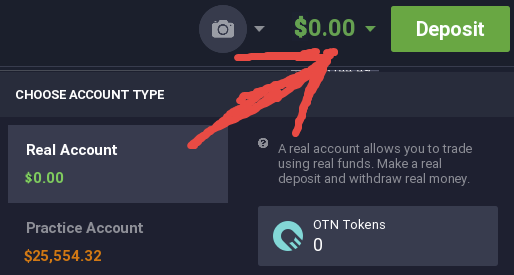
On the Iqoption platform trader has only one login and password for both real account and demo account. Trader doesn’t need register two accounts! To switch on Demo trading account and Real trading account just click on balance. After that trader can select one type of account. It must be DEMO trading account or REAL trading account.
How to log out from IqOption?
If trader wants log out from IqOption trading room in this case trader needs to find menu like on the sample:
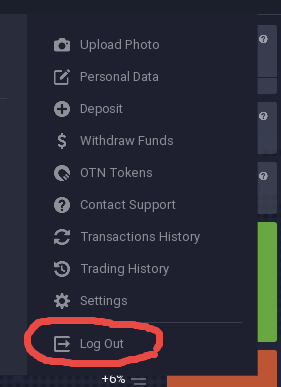
Usually trader can find log out menu on the top of trade room. Just click on the “Log Out” and it’s all. If trader wants keep money safe we recommend log out from trade room after trading. Also we reccomend log out if trader don’t want use trade room in near future. If trader doesn’t use “Log Out” button somebody (who has access to computer) can open browser and in few clicks get access to trade room because browser remember almost everything like login sessions and so on…
How to change email or login?
Only few simple steps to change email:
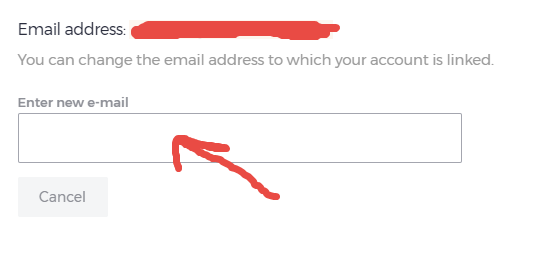
First of all trader needs log in to account and find profile menu. Trader has to click profile and find Personal Data menu. In this section trader can change email like on sample. So, if trader needs change email it help do it so easy by few steps on IqOption.
We recommend use always most secure email account for registration on IqOption.
Trading without login?
Trader can’t trade on IqOption.com without login on IqOption account. So, trader needs register trading account and always use login details to be able trade on DEMO or REAL ACCOUNT.
Log in to Iqoption Android app
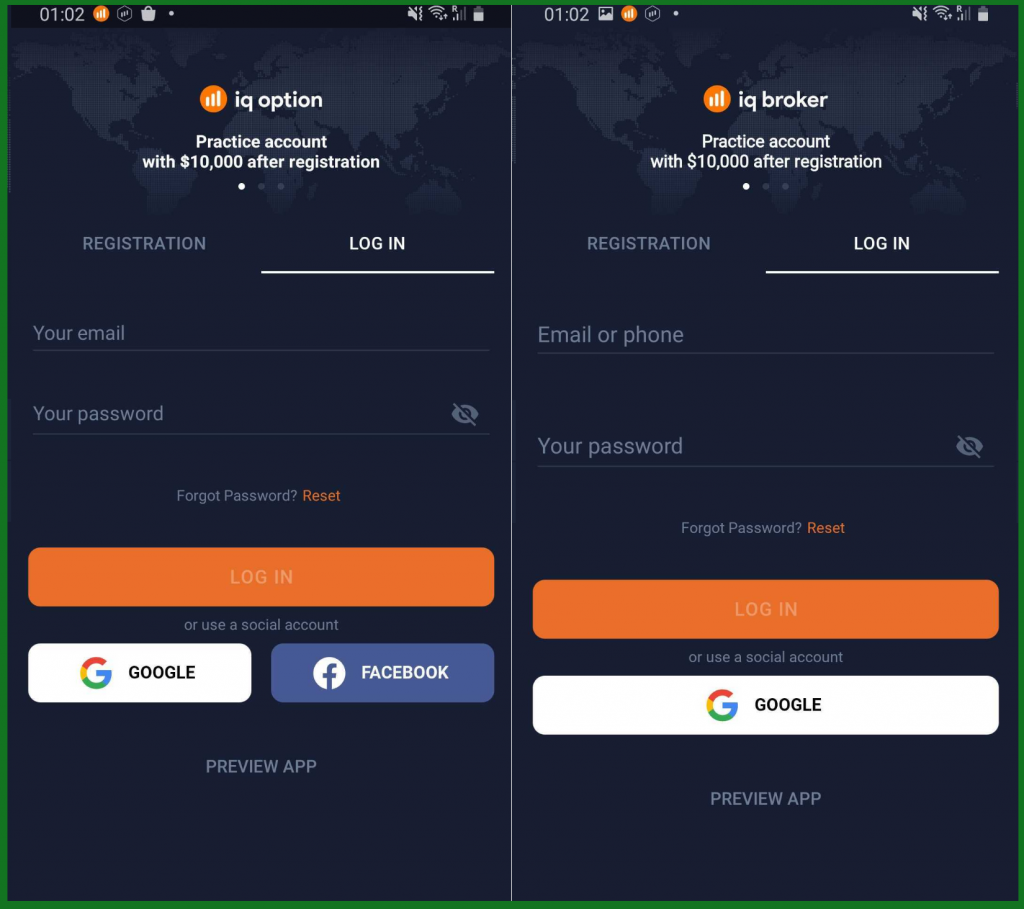
To log in to android app user must follow next steps:
- Launch the Android app,
- Click “Login button”,
- Fill email address,
- Fill the password,
- Click “Facebook” or “Gmail” button (in case of social account registration),
- Click “Reset” (if trader forgot password only!).
*For IqOption and IqBroker app instruction is same.
Log in to Iqoption iOS app
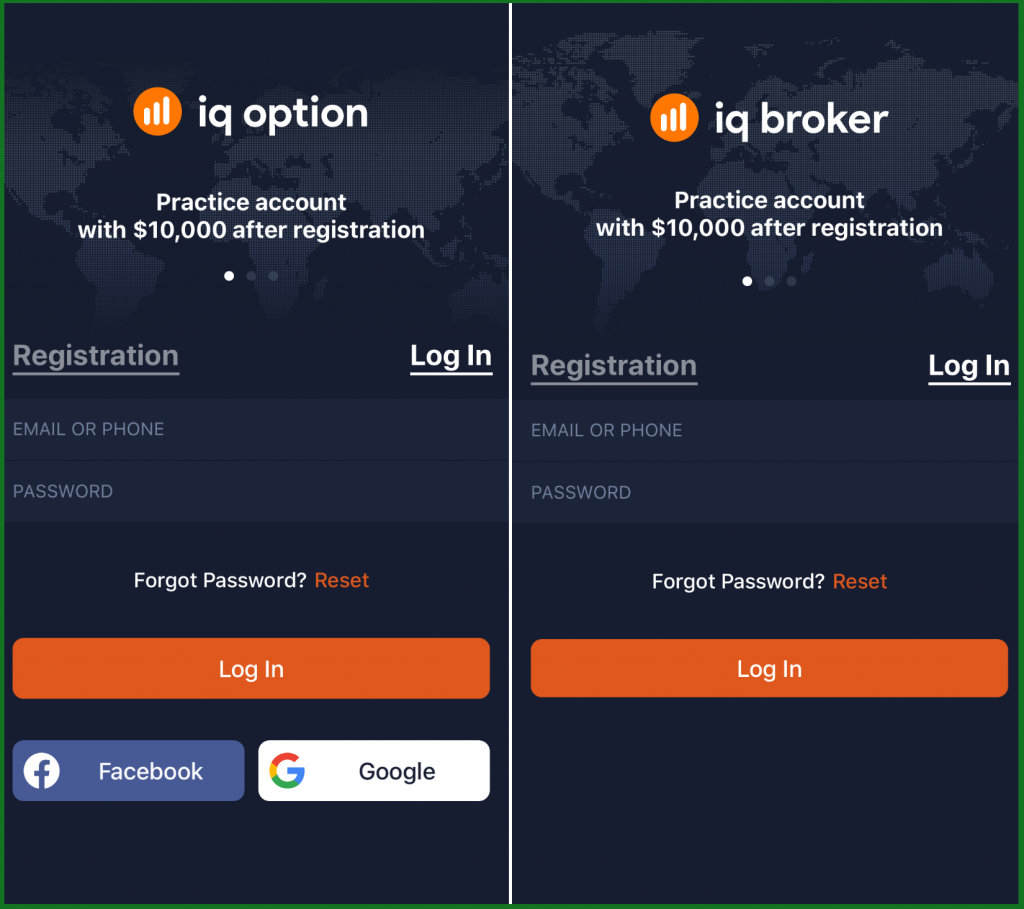
To log in to iOS app user must follow next steps:
- Launch the iOS app,
- Fill fields with email and password,
- Click “Facebook” or “Gmail” button (in case if trader wants log in with social profile),
- Click “Reset” (if trader forgot password only!).
IqOption Log in with email
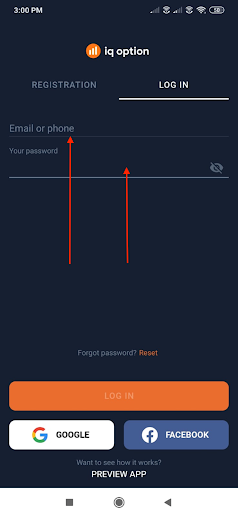
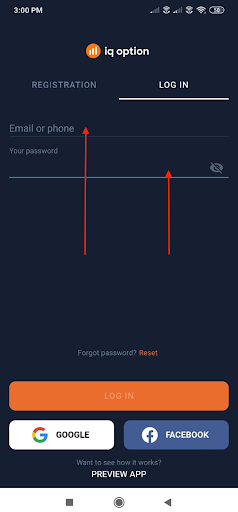
To login via your email, simply click on the LOG IN tab at the top and input your email id and password. Now click on LOG IN button at the bottom of the app window.
You might get a loading screen like this.
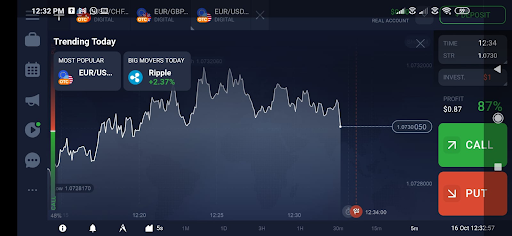
After this, you would have access to your account dashboard in landscape mode by default.
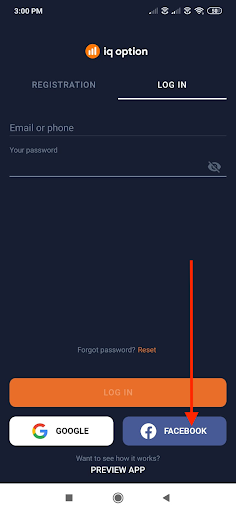
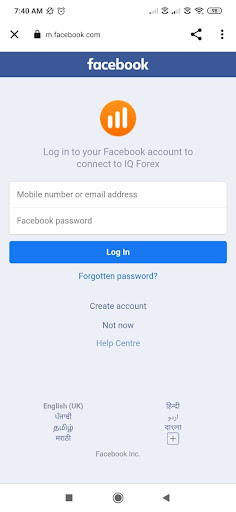
IqOption Log in with Facebook
To login via your Facebook account, simply click on the LOG IN tab at the top and input your registered phone number and password.
IqOption Log in with phone number
To login via your email, simply click on the LOG IN tab at the top and input your registered phone number and password. Now click on LOG IN button at the bottom of the app window.
IqOption Log in with Gmail
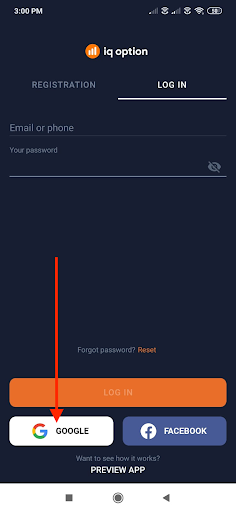
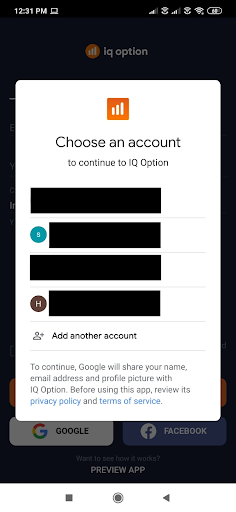
To login via your email, simply click on the LOG IN tab at the top and click on the Google icon at the bottom.
Login Issue
In case if trader forgot phone number or email that was used like login. In this case login can be restored by IqOption support 24/7. If trader forgot Facebook or Gmail login in this case login can be restored by Facebook or Gmail support!
For IqOption and IqBroker app instruction is same. IqBroker is new app and social buttons may not be available in old versions.


Leave a Reply